
You collected video reviews through Reviewers.com - now make sure to take them with you wherever you need! This article walks you through how to export your reviews from Reviewers.com and import them into the review app of your choice.
How to export your reviews from Reviewers.com
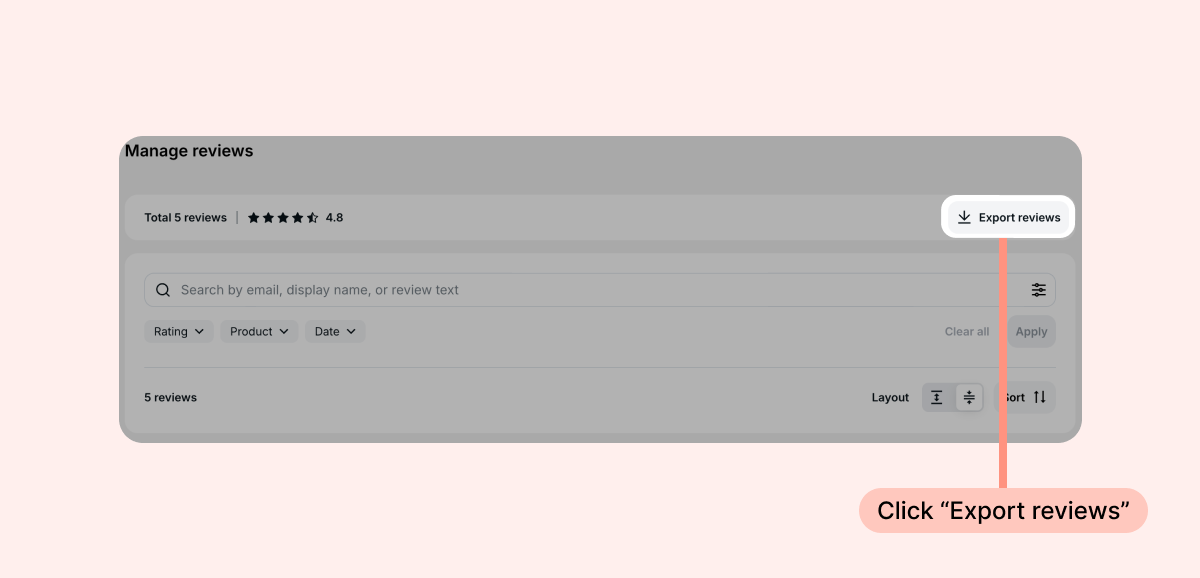
- In your Reviewers.com admin, go to Manage Reviews.
- Click Export reviews in the top right corner.
- A CSV file containing your reviews will be downloaded to your device.
How to import your reviews into your review app
Once you have your CSV file, follow the instructions for the app you're moving to:
Tip: If your review platform requires you to select an import source, you can select Loox. The Loox and Reviewers.com export files are identical.
Loox
The reviews you receive via Reviewers.com will automatically appear on your Loox Manage Reviews page, follow your auto-publish settings, and be published onto your Loox review widgets - no manual export or import required!
Judge.me
Judge.me supports importing reviews via CSV, but they don't support importing video reviews directly - meaning your videos will not be automatically attached to the reviews you import. First, you'll import your exported review file from Reviewers.com to Judge.me. After the initial import is complete, you can manually add the videos to individual reviews by editing them on Judge.me.
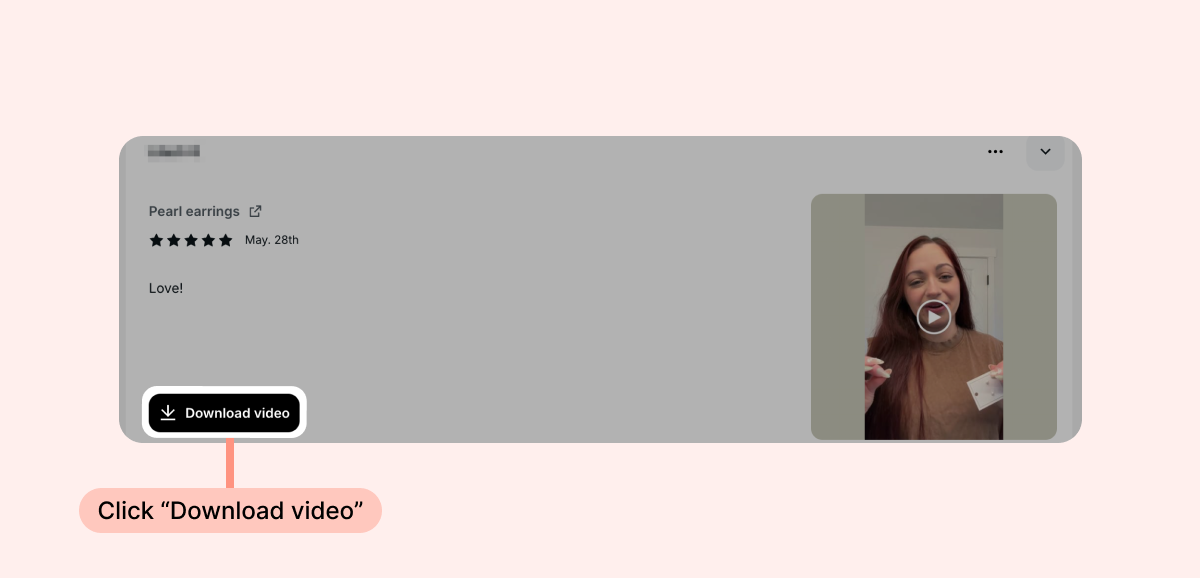
You can download each video from the CSV file you exported from Reviewers.com or download each video directly from your Reviewers.com Manage Reviews page like so:
 Learn how to import reviews into Judge.me →
Yotpo
In your Yotpo interface, click Upload from provider. If you have to select which review provider your file is coming from, select Loox.
Learn how to import reviews into Yotpo →
Stamped
Stamped lets you import reviews via CSV through the Importer tab in your dashboard. Go to Settings > Importer > Reviews, select your file, choose Loox as your provider source, and upload.
Learn how to import reviews into Stamped →
Okendo
Okendo supports CSV imports through their Import/Export settings. In your Okendo admin, go to Settings > Import/Export to upload your file. Okendo's system should recognize the file format automatically, so you shouldn't have to alter the export file.
Learn how to import reviews into Okendo →
Junip
In your Junip admin, go to Reviews > Import, select Loox as your import source, and upload the export file.
Learn how to import reviews into Junip →
Reviews.io
Reviews.io handles review imports through their support team. Export your CSV file from Reviewers.com and submit it via Live Chat from your Reviews.io dashboard (bottom-right corner). Their team will take care of the upload.
Learn how to import reviews into Reviews.io →
Klaviyo
Klaviyo supports importing reviews via CSV. In your Klaviyo admin, go to Reviews > All reviews > Options > Import Reviews. If Loox appears as a supported provider, select it and upload your file directly. If not, select Other/Not sure and format your CSV to match Klaviyo's import template before uploading.
Learn how to import reviews into Klaviyo →
FAQs
Q: What does the exported CSV file include?
A: The CSV file includes the following data - product ID, product handle, variant ID, rating, review text, reviewer details, verified status, order ID, metaobject handle, and video file URL.
Q: My review app requires me to select a review file source. Which one should I select?
A: You can select Loox as your review source - the review export files from Loox and Reviewers.com are identical.
Need help? If you have more questions, contact our support team at brands@reviewers.com - we're happy to help!