
This article walks you through the full campaign creation process step by step, and explains what happens on the Reviewer side once your campaign goes live - from how they discover your offer to how they place their order.
Before you start
Before creating your campaign, make sure you have:
- A product in stock - The product you select must be available and in stock for the duration of your campaign. You will not be able to create a campaign for a product that doesn't have enough inventory. You'll be gifting 5 or 10 items, so make sure you have enough stock to cover those orders plus your regular sales during the campaign window.
- Shopify Checkout enabled - Reviewers.com requires Shopify Checkout. Third-party checkout apps are not supported.
How to create a campaign
- Open the Reviewers.com app and click Create a new campaign.
- Set up your campaign details:
- Name your campaign - Choose an internal name to help you identify this campaign (e.g., "Summer collection" or "New lip balm launch").
- Select your product - Choose the product and relevant variants you want to offer to Reviewers.
- Number of items to give away - Select 5 or 10 items. Make sure you have enough stock available for the full campaign duration.
- Define your target audience. Set the age range, gender, and location for your ideal Reviewer. The Reviewers.com community is currently US-based ages 18 and up. To make sure your campaign reaches new faces, you can tick Exclude Reviewers who joined your previous campaigns - Reviewers who claimed a product in any of your campaigns won't be able to join this one. Learn more about excluding Reviewers below. In this step, you can also hand pick "priority Reviewers" - a selection of specific Reviewers who match your audience and whose past reviews fit the style you're looking for. They'll get first access to your campaign before it's shared with the rest of the community. Learn more about choosing Priority Reviewers.
- Set review request timing. Decide when Reviewers receive their review request email. You can customize this per campaign by choosing a timing of 1-30 days after purchase, fulfillment, or delivery. Take into account how much time the Reviewers need to use and get to know your product before filming their review. In this step, you can also prevent Reviewers from submitting an early review by turning off the Let Reviewers submit their review before getting the email toggle. Learn more about requiring a minimum usage time below.
Note: To use delivery-based timing, Shopify must receive shipment status updates from your shipping carrier or tracking app.
- Add screening questions (optional). Filter which Reviewers can participate by adding up to 3 yes/no qualifying questions. For example, if you sell dog products, one question could be, "Do you have a dog?" Anyone who answers "no" won't be able to join the campaign. Only applicants who give a qualifying answer on all questions are accepted - the rest are automatically declined. You can skip this step if you don't want to filter applicants.
- Write a brief for your Reviewers (optional).Guide Reviewers on what to highlight in their video review. You have two ways to do this:
- Write your own brief. Ask Reviewers to mention your brand name, focus on a specific feature, demonstrate the product in use, or show the unboxing.
- Start from a template. Pick one of the ready-made brief templates and we'll generate a tailored brief from your product's details. The brief appears in the text box for you to review and edit before you continue.
Available brief templates:
- Unboxing - The Reviewer films the unboxing, showing the packaging, first look, and their initial reactions.
- First impression - The Reviewer shows the first time using the product, including setup, feel, look, and smell.
- Testimonial - The Reviewer shares their experience after using the product for a while, covering results and ongoing use.
- Before & after - The Reviewer frames the review as a before-and-after, showing what problem the product solved.
- Tutorial - The Reviewer gives a step-by-step demo of the product.
- Everyday use - The Reviewer shows the product in their daily routine or natural environment.
After a template generates a brief, you can edit the text before continuing. To switch templates, select a different one. To clear the generated brief and start over, select the same template again. These instructions are shown to Reviewers during the review submission process under "A note from the brand."
Note: To generate a brief from a template, your product needs to have a description defined on Shopify. If the product has no description, add one and try again.
Tip: Templates automatically produce briefs that follow our review guidelines. If you write or edit your own brief, keep it focused on product features and filming suggestions, and avoid scripted language or asking for only positive feedback - honest reviews perform better with shoppers.
- Review and confirm your campaign details, then click Submit for approval.
Once submitted, your campaign status is set to Pending. Our team manually reviews every campaign before it goes live. You'll receive a confirmation email, and if approved, your campaign will typically go live within a few days.
What happens after you submit
After your campaign is submitted, you keep track of its status on your Manage Campaigns Page:
Campaign pending
While your campaign is being reviewed, it stays in Pending status. No action is needed from your end - our team will review it and update the status. At this stage, you can still cancel the campaign from your end - once the campaign is approved, it's no longer possible to cancel.
Campaign approved
You'll receive an email letting you know your campaign is live, and within about 24-48 hours, it's shared with eligible Reviewers who can claim a product.
Campaign rejected
If your campaign doesn't meet our guidelines, you'll receive an email explaining why. Common reasons include out-of-stock products, incomplete campaign details, or products that don't align with our community standards. If a credit or payment was used, it's returned to your account automatically. You can adjust your campaign and create a new one.
Requiring a minimum usage time before reviews can be submitted
By default, Reviewers can submit their video review whenever they're ready, even before their review request email arrives. Some products need real usage time before a Reviewer can speak to results - think skincare, supplements, or anything with a learning curve.
If you want your participating Reviewers to take more time with your product before submitting their review, you can turn off the Let Reviewers submit their review before getting the email toggle in the review request timing step of campaign creation.
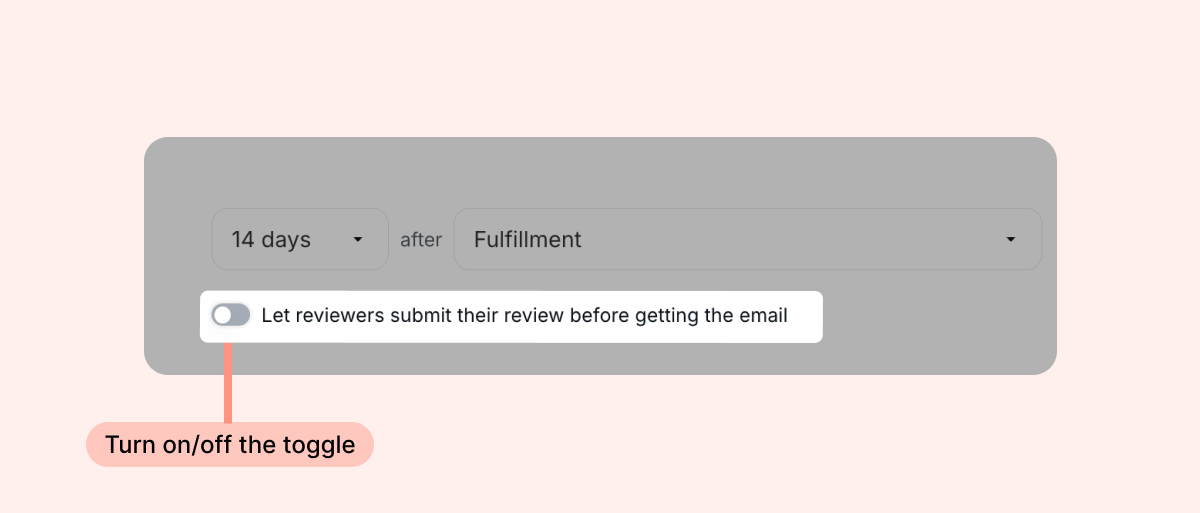
- Reviewers can submit their review only once they receive a review request email (based on the timing you set). For example, if you set the timing to 14 days after delivery, Reviewers can submit their review starting 14 days after their order is delivered
- Reviewers see the required usage time in the campaign email they receive, so they know what's expected before they join
- A screening question is automatically added to your campaign, asking Reviewers to confirm they're willing to use the product for the required time before reviewing. Only Reviewers who confirm can join
Tip: Reviews based on real usage tend to be more detailed and more convincing to shoppers. If your product needs time to show its value, turning off this toggle helps make sure every review reflects a genuine experience with it.
Excluding Reviewers who joined your previous campaigns
To keep every campaign reaching new Reviewers, tick Exclude Reviewers who joined your previous campaigns in the target audience step of campaign creation.
When the checkbox is ticked:
- Any Reviewer who claimed a product in one of your campaigns, including campaigns that are still running, won't be offered this campaign and won't be able to join it
- Priority Reviewers are not affected. Any Reviewer you select as a priority Reviewer gets access to your campaign even if they joined one of your previous campaigns, so you can bring back your favorites while keeping the rest of the campaign open to new faces only. Learn more about choosing priority Reviewers.
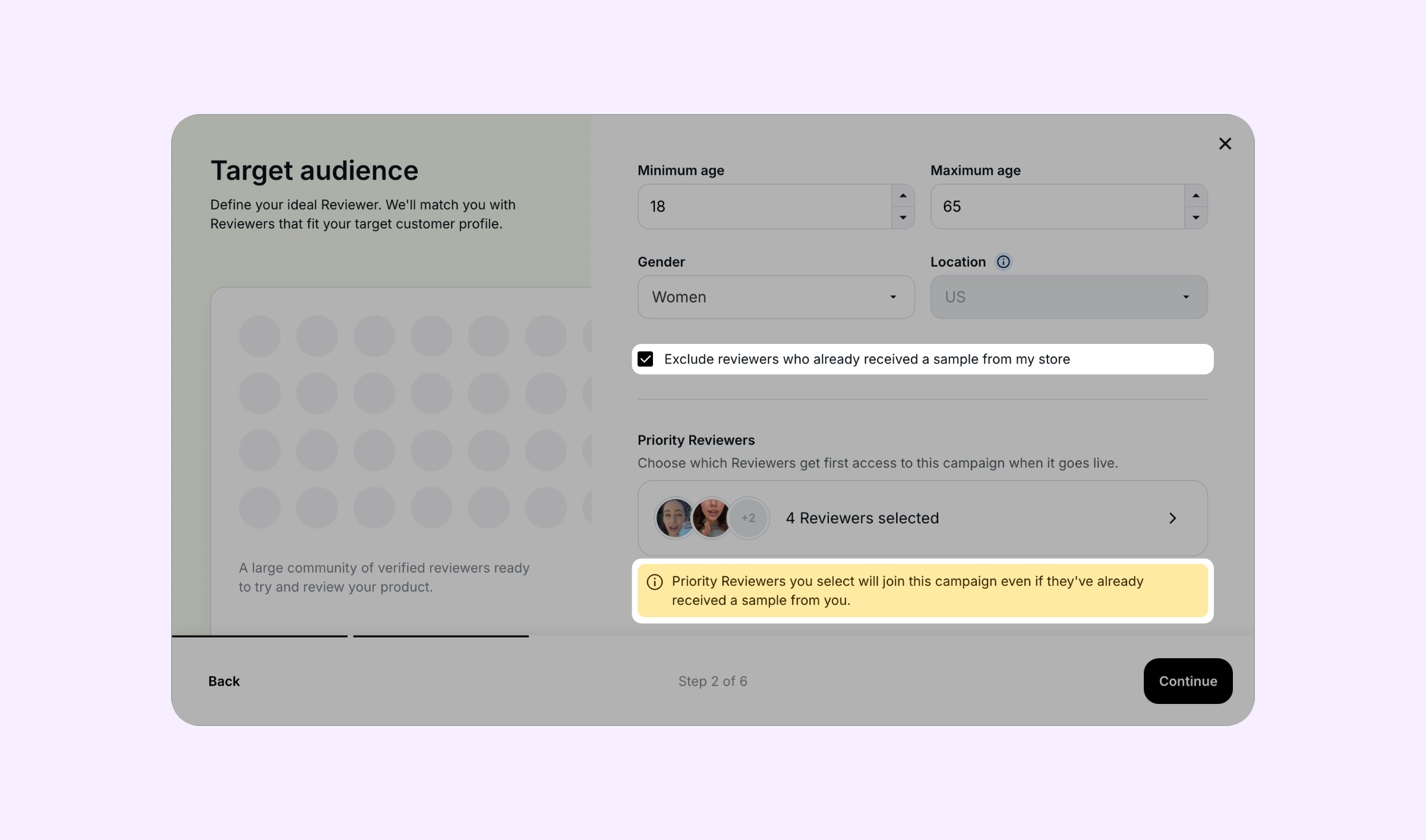
Tip: Use this option when you want each product's reviews to come from different people, or when you're running several campaigns and want each one to reach a fresh set of Reviewers.
How Reviewers join your campaign
Once your campaign is live, here's what happens on the Reviewer side:
- Campaign is shared with all eligible Reviewers. If you selected priority Reviewers, they receive a personalized email with first access to your campaign. One day later, your campaign goes out to all Reviewers in the community who match your target audience criteria (age & gender) via a daily digest email.
- Reviewers claim your offer. Eligible Reviewers who are interested can claim a spot in your campaign on a first-come, first-served basis. If you set up screening questions, only Reviewers who submit qualifying answers are able to join.
- Reviewers place an order on your store. Reviewers visit your product page directly and place an order using a unique, automatically applied 100% discount code that covers the price of the product and shipping (valid for one item only). The order appears in your Shopify admin as a regular order, so your usual notifications, workflows, and fulfillment process still apply.
- You fulfill the order. Process and ship the order as you would any other Shopify order.
- Review request is sent. After the product is delivered (and based on your custom timing settings), Reviewers receive an email from Reviewers.com with a link to submit their video review. Multiple reminder emails are sent automatically to reduce ghosting.
- Reviewer submits their video. Reviewers film and submit their honest video review. If you wrote a brief, they see your guidance during the submission process. Every submitted video goes through our AI quality check before it's approved. If a review doesn't pass, the Reviewer receives feedback and is prompted to resubmit.
Note: Reviewers can only participate in one campaign at a time. They can't join another campaign until they submit their video review for the current one.
Identifying Reviewers.com orders in Shopify
All Reviewers.com orders use discount codes prefixed with "RVS-". You can use this prefix to identify and filter for campaign-related orders in your Shopify admin.
These orders appear alongside your regular orders and should be fulfilled using your standard process. There's no separate fulfillment system - Reviewers are real customers placing real orders on your store.
Campaign limitations
- Duration - Campaigns run for up to 7 days or until all items are claimed, whichever comes first. They can't be extended
- Editing - Campaigns can't be edited after creation, but you can view any campaign's settings via on its Campaign overview tab. You can cancel a Pending campaign and create a new one. Active campaigns can be paused and resumed within the 7-day window.
- Pausing - When you pause an active campaign, its timer stops. When you resume, it continues from where it left off (e.g., paused after 3 days = 4 days remaining once resumed)
- Canceling - Only Pending campaigns can be canceled on your end. Once a campaign is active, it can't be canceled
- Items per campaign - You can gift either 5 or 10 items
- One product per campaign - Each campaign features a single product (variants can be included so Reviewers can choose their preferred option)
FAQs
Q: How long after approval does my campaign go live?
A: Approved campaigns typically go live within 24-48 hours. We choose the best timing to maximize engagement with our Reviewer community.
Q: Can I target a specific audience?
A: Yes. During campaign creation, you define the age range and gender of your target Reviewers, and you can add up to 3 screening questions for an even closer match. You can also select priority Reviewers to give specific Reviewers first access to your campaign, and exclude Reviewers who joined your previous campaigns. The community is currently US-based.
Q: Can I make sure each campaign reaches Reviewers who haven't tried my products yet?
A: Yes. In the target audience step of campaign creation, tick Exclude Reviewers who joined your previous campaigns. Reviewers who claimed a product in any of your campaigns won't be able to join. Priority Reviewers you select are not affected by this exclusion.
Q: What if my product goes out of stock during the campaign?
A: Make sure you have enough stock to cover the items you're gifting, plus your regular sales. If a product becomes unavailable, Reviewers won't be able to place their orders.
Q: Do I need to fulfill the orders manually?
A: Yes. Reviewers.com orders appear in your Shopify admin like any other order. Fulfill and ship them using your standard process.
Q: How do Reviewers know what I want in the review?
A: If you wrote a brief during campaign creation, Reviewers see it as "A note from the brand" during the video submission process. You can use the brief to describe what you're looking for in the video- e.g., unboxing, tutorial, etc. You can also add screening questions to ensure the right people are reviewing your product.
Q: Can I run multiple campaigns at the same time?
A: Yes. You can have several campaigns running simultaneously for different products.
Q: What happens if a Reviewer doesn't submit a review?
A: Reviewers won't be able to join new campaigns until they submit their review. We also send multiple reminder emails. The expected ghosting rate is 10-30%.
Need help? If you have more questions, contact our support team at brands@reviewers.com - we're happy to help!